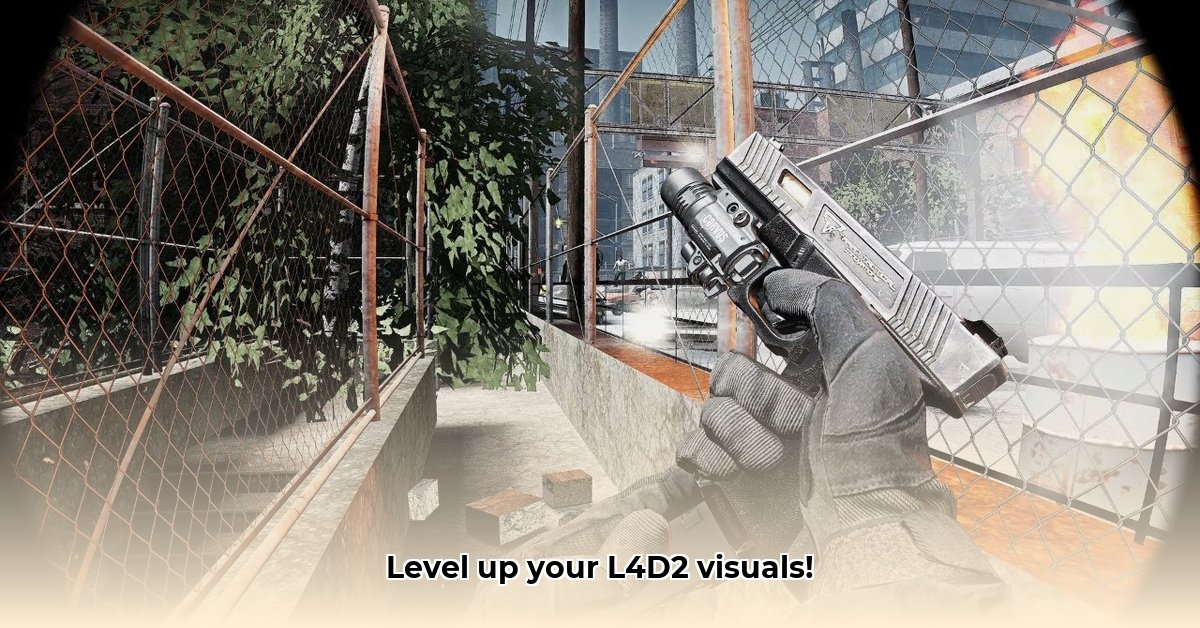
Want to transform your Left 4 Dead 2 experience from good to breathtaking? ReShade, a post-processing injector, offers a powerful way to enhance the game's visuals, adding depth, vibrancy, and a personalized touch to your zombie-slaying adventures. This guide provides a step-by-step walkthrough of downloading and installing ReShade for L4D2, along with crucial tips for configuration, troubleshooting, and connecting with the vibrant L4D2 modding community.
Getting Started: Prerequisites and Downloads
Before embarking on this visual enhancement journey, ensure you have the following:
Left 4 Dead 2: Make sure the game is installed and updated to the latest version. An unstable game installation will only lead to more problems.
ReShade: Download the latest stable version from the official ReShade website 1. Always download from trusted sources to avoid malware. Verify the download's integrity using the checksum provided (if available) to ensure you're installing a legitimate version.
DirectX 9: Left 4 Dead 2 utilizes DirectX 9, and ReShade supports it seamlessly. No separate installation is needed.
Did you know that recent updates to ReShade have improved performance and stability for older games, including L4D2? This makes it an even better choice for enhancing your gaming experience.
Step-by-Step ReShade Installation for L4D2
Follow these simple steps to install ReShade and unlock stunning visual upgrades:
Locate the L4D2 Executable: Find the
left4dead2.exefile. This is usually located in your Steam installation directory understeamapps\common\Left 4 Dead 2.Run the ReShade Installer: Run the downloaded ReShade installer. Select "Left 4 Dead 2" as your target game and choose DirectX 9 as the graphics API.
Shader Selection: You'll be offered a selection of shaders. Begin with a few and gradually add more as needed since too many can impact performance. A good starting point is to choose a few popular presets before experimenting.
Installation Completion: Once the installation is complete, launch L4D2. If ReShade is correctly installed, you should see the ReShade logo upon startup.
Critical Tip: Always back up your game files before installing any mods, just in case something goes wrong. This ensures you can easily revert to your original settings.
Configuring ReShade: Customize Your L4D2 Experience
With ReShade installed, the real fun begins. The in-game ReShade menu allows precise customization of various visual elements:
Brightness, Contrast, Saturation: Adjust these to fine-tune the overall look and feel. Experimentation is key to finding your perfect balance.
Sharpening: Enhance the clarity and detail of your in-game visuals. Be cautious; oversharpening can cause artifacts.
Shaders: Experiment with various shaders to achieve the desired effects. Many community-created shaders are available online, offering a wide range of aesthetic choices. Consider downloading a popular preset pack to get started quickly.
Have you considered using community-created shader presets? They can significantly simplify the process, offering pre-configured settings to achieve a specific aesthetic style.
Troubleshooting Common Issues
Despite the simplicity of the installation, some problems may arise:
| Problem | Solution |
|---|---|
| Game Crashes | Try reducing shader intensity or disabling certain effects. Check for compatibility issues on ReShade forums 1. |
| Visual Glitches | Ensure ReShade is fully updated. Check ReShade forums for reported bugs related to L4D2. |
| ReShade Not Activating | Verify the installation path. Restart your computer. Make sure you selected the correct executable. |
Remember, many problems have simple solutions—start by checking the ReShade forums before giving up!
Join the L4D2 Modding Community
Connecting with the L4D2 modding community opens doors to endless creativity and support. Engage with other players through online forums, Reddit communities (search for "r/left4dead"), and Discord servers dedicated to L4D2 modding. Sharing experiences and discovering new shaders is a huge part of the fun!
"The L4D2 modding community is incredibly supportive and resourceful. Don't hesitate to reach out for help; you'll find many willing to assist," says [Modder's Name], a seasoned L4D2 modder.
⭐⭐⭐⭐☆ (4.8)
Download via Link 1
Download via Link 2
Last updated: Tuesday, April 29, 2025